


Support
We're here to help.
Find answers to common questions below. If you can't find what you need, we're always available by email.
support@havenaud.ioSupport
Getting started & troubleshooting
How do I access my downloads after purchase? +
Your download is emailed to you immediately after purchase, sent to the email address you used at checkout.
If you don't see it within a few minutes, check your Promotions and Spam/Junk folders — automated emails sometimes end up there. Still can't find it? Reach out to us at support@havenaud.io and we'll get you sorted.
How do I install my preset packs? +
Your preset pack comes as a .labx file. Here's how to load it into Analog Lab:
1. Unzip the download if it's zipped, so you have the .labx file on its own.
2. Open Analog Lab (standalone, or as a plugin inside your DAW).
3. Click the Import button (or drag and drop the .labx file straight into the Analog Lab window).
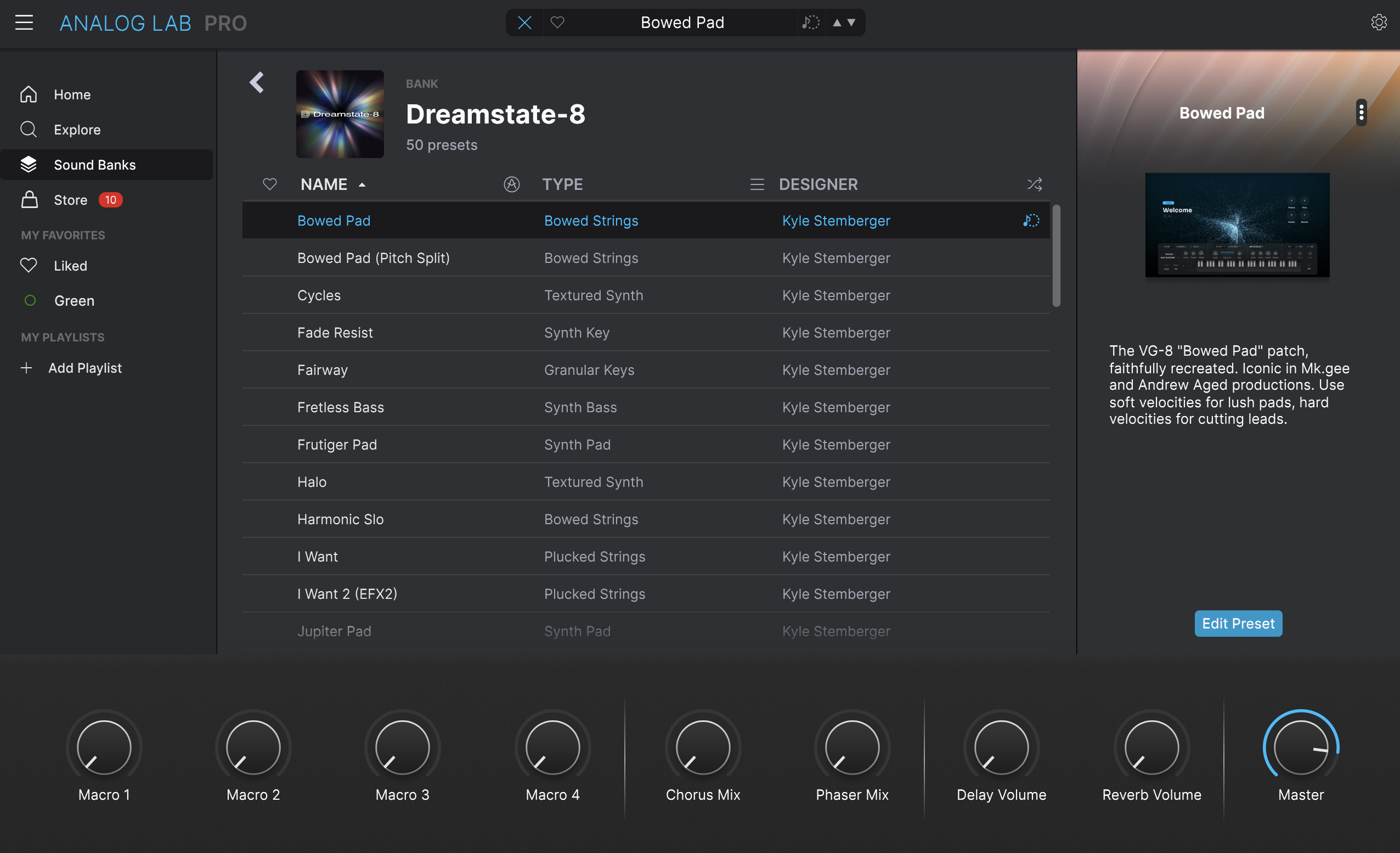
4. Once it finishes importing, your new bank will show up in your library under Sound Banks, ready to browse and play.
Why am I getting an error message on Analog Lab? +
This almost always happens because Analog Lab isn't updated to the latest version — updating it fixes the issue in most cases. If you're still seeing the error afterward, try dragging the .labx file to your desktop first, then importing it from there.
Still stuck? It's likely a permissions issue, and the fix depends on your computer:
Windows: Right-click your DAW and select "Run as administrator."
Mac: Launch Analog Lab as a standalone app with administrator privileges. Copy this whole line (including the quotation marks) into Terminal and press enter:
sudo "/Applications/Arturia/Analog Lab V.app/Contents/MacOS/Analog Lab V"